The Occy Mailbox is designed for users with Admin or Recruiter permissions to manage candidate communications directly within the platform. This ensures all recruitment-related emails stay in one place, keeping your business email inbox clear and organised.
Take a tour of the mailbox in the demo or written description below.

Accessing the occy Mailbox
Access your Occy Mailbox at any time by clicking the envelope icon in the top bar, which is visible on every page within your Occy account.


A Tour of the Section
The Mailbox section is organised into two sections on the left-hand side: My Emails and Company Emails.
The My Emails section contains emails sent to and from candidates either directly or automatically by the system due to your assigned role or actions taken on a job.
Admin users will also see the Company Emails section, which houses emails sent to and from the company's Occy email address. Emails sent to deleted users will also be redirected to this mailbox to ensure no communication is missed if your team changes.
All emails sent to or from candidates will appear in the Mailbox section as well as the Communications tab within the candidate profile.
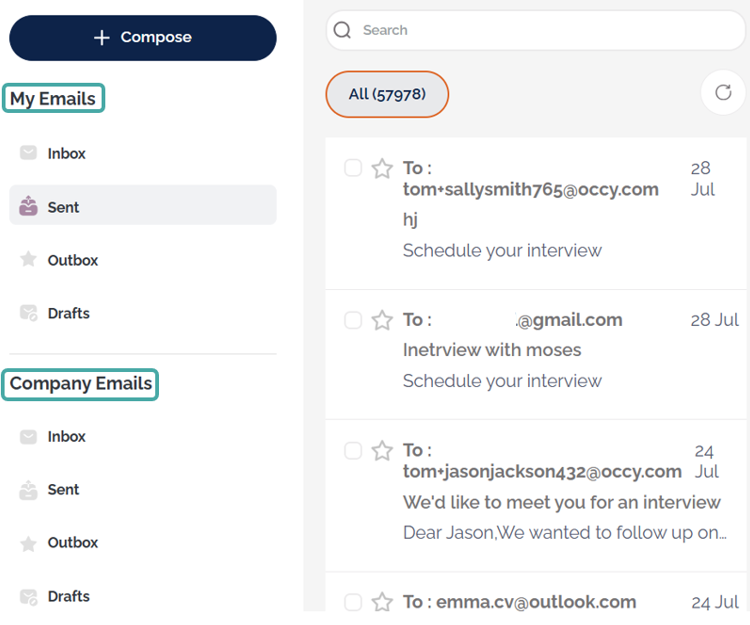
- Search for specific emails using the search bar.
- Use the Refresh icon to instantly update the mailbox.
- Switch between the 'All' and 'Unread' tabs to locate specific emails.


Sending and Scheduling Emails
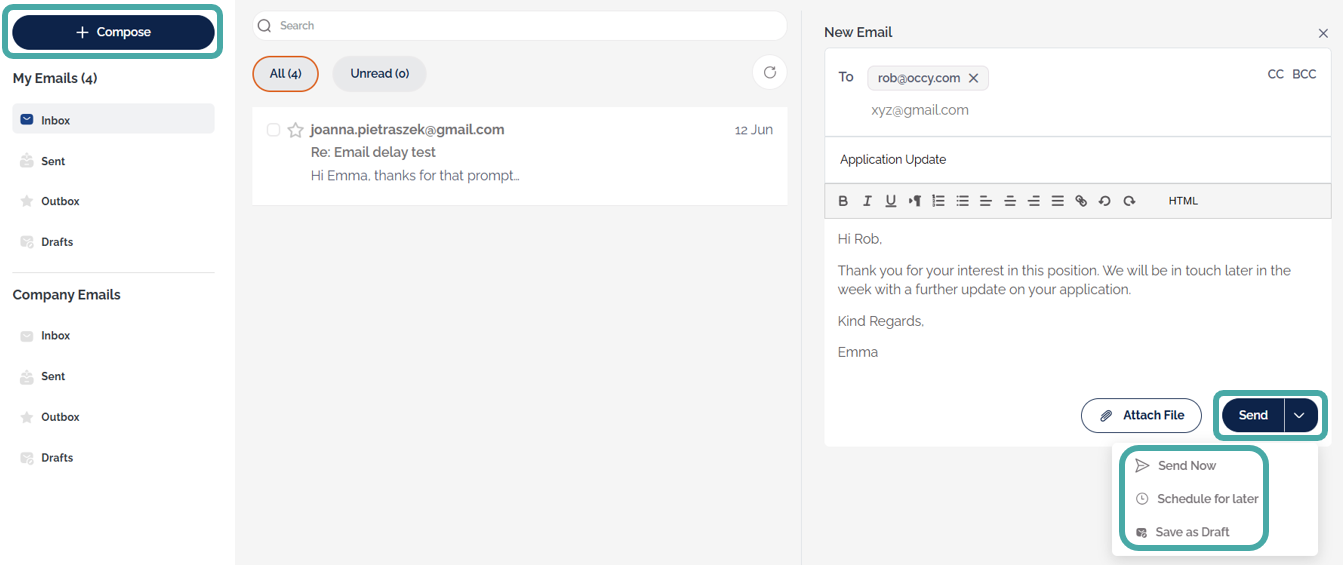
Click the Compose button to send emails.
Admin users can also send emails from the company inbox by clicking on a folder in the Company Emails section before clicking the Compose button.
After composing the email, click Send, or choose from the following options by clicking the arrow next to the Send button:
- Send Now - This sends the email immediately.
- Schedule for later - Schedule a time and date for the email to be sent.
- Save as Draft - This saves the email into your Drafts folder, where you can edit and send it from there at a later time.
If you choose to schedule an email to be sent later, a window will appear.
- Choose the date from the calendar that you would like the email to be sent.
- Select a time by clicking the Time box.
- Click Schedule, and the email will be sent automatically at the chosen time and date.


Who Is Listed as the Email Sender?
The email sender listed on emails is determined by the email type. Below is a list of email types and who will be listed as the sender:
- GDPR emails: The email will be sent from the user who created or most recently edited and saved the job the candidate applied to.
- Acknowledgement of application: If the candidate is added manually, the sender will be the user who added the candidate. If the candidate applies, the sender will be the first recruiter listed on the hiring team in the Access Control section of the job.
- Email triggered by a candidate being manually moved into a stage: The person who manually moved the candidate.
- Email triggered by automation: The email sender will be the user who created the job.
- Reference checks: RefNow at reference@refnow.co.uk.
- Notifications to staff: support@occy.com.
- Interview reminder: The email sender will be the first recruiter listed on the hiring team in the Access Control section of the job.
- Completion of form reminder: The email sender will be the first recruiter listed on the hiring team in the Access Control section of the job.
Replies to emails sent by deleted users will be redirected to the Company inbox.
Was this article helpful?
That’s Great!
Thank you for your feedback
Sorry! We couldn't be helpful
Thank you for your feedback
Feedback sent
We appreciate your effort and will try to fix the article