Occy's Reference Check feature is a free service that enables users to create, manage, and send reference check requests all from within the system.
Create bespoke reference forms for specific roles, or a generic list of questions to use company-wide. Forms can then be sent in bulk, to individual candidates, or automatically when candidates land in a specific stage of your job workflow.
You can also set follow-up reminder emails to be sent to candidates and referees, and track reference statuses and download completed forms with individual candidate timelines to ensure your hiring process stays on track and you don't miss any vital information.
Reference checks are part of the Forms section and can be created in three simple steps:
- Create and configure reference forms.
- Add reference checks to a workflow automation or manually send to candidates within a job.
- Track and manage requests from within the candidate profile.

How to Create a Reference Check Form
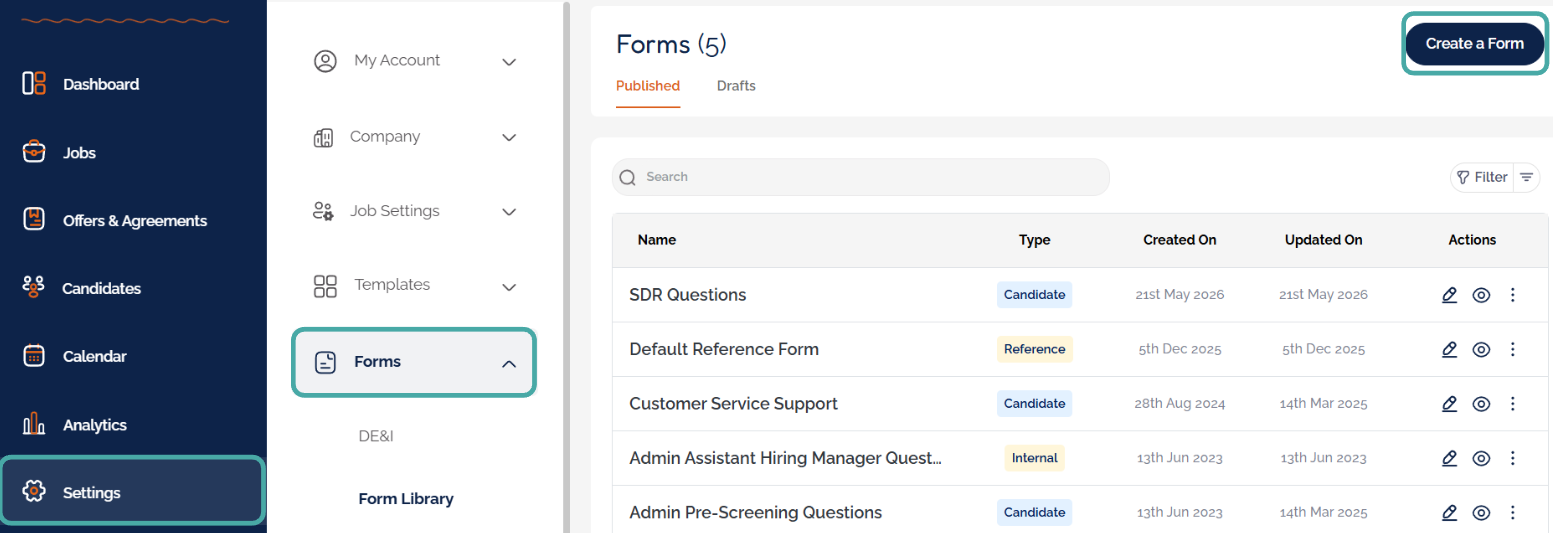
Create a reference form by navigating to Settings in the main menu, then Forms, and Form Library. Then, click Create a Form at the top of the page.
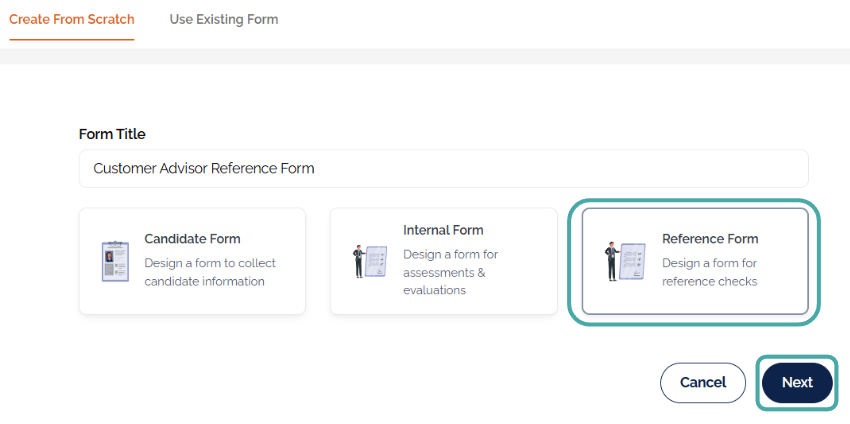
Next, add a form title, choose Reference Form, and click Next.
If you would like to use an existing reference form as a template, you can find this in the Use Existing Form tab.
Tip: If you're planning to create multiple reference forms, make sure to use a title that makes the form easy to identify, such as referencing the job title.
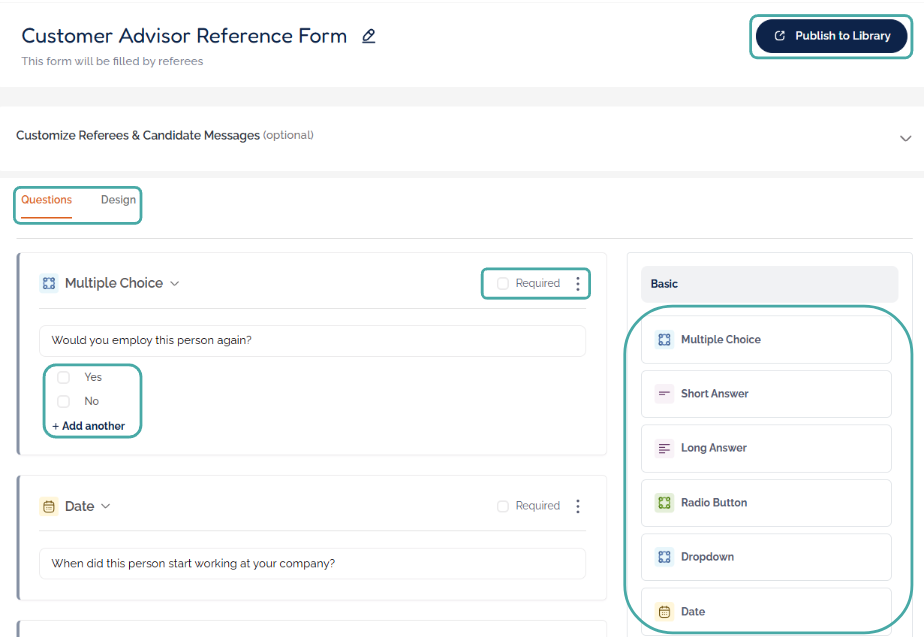
Next, add the list of reference questions.
Occy provides a range of question formats to chose from, including date and multiple-choice. If choosing the multiple-choice question, make sure to add answer options in the space underneath the question.
- Click the Required box to ensure the referee must provide an answer to successfully complete the form.
- Easily duplicate or delete questions using the options in the three-dot menu.
Occy also allows you to customise the design of the form to fit your company's brand. This can be configured in the Design tab. To see more information on using the Design tab, check out our article on Candidate Forms.
Click Publish to Library to save the form.

How to Administer a Reference Check
Reference checks can be administered manually or automatically. The steps below show how to manually request a reference check. For further information on how to do this automatically, take a look at the Reference Forms section of our Hiring Workflow Automations article.
To request a reference for a single candidate, click on the candidate to open the candidate profile, then click the three-dot menu at the top of the window and choose Administer Checks.

To request reference checks for multiple candidates, click the bulk actions icon found at the top of the Candidates section within a job; this will allow you to select multiple candidates.
Then, click the Administer Checks icon.
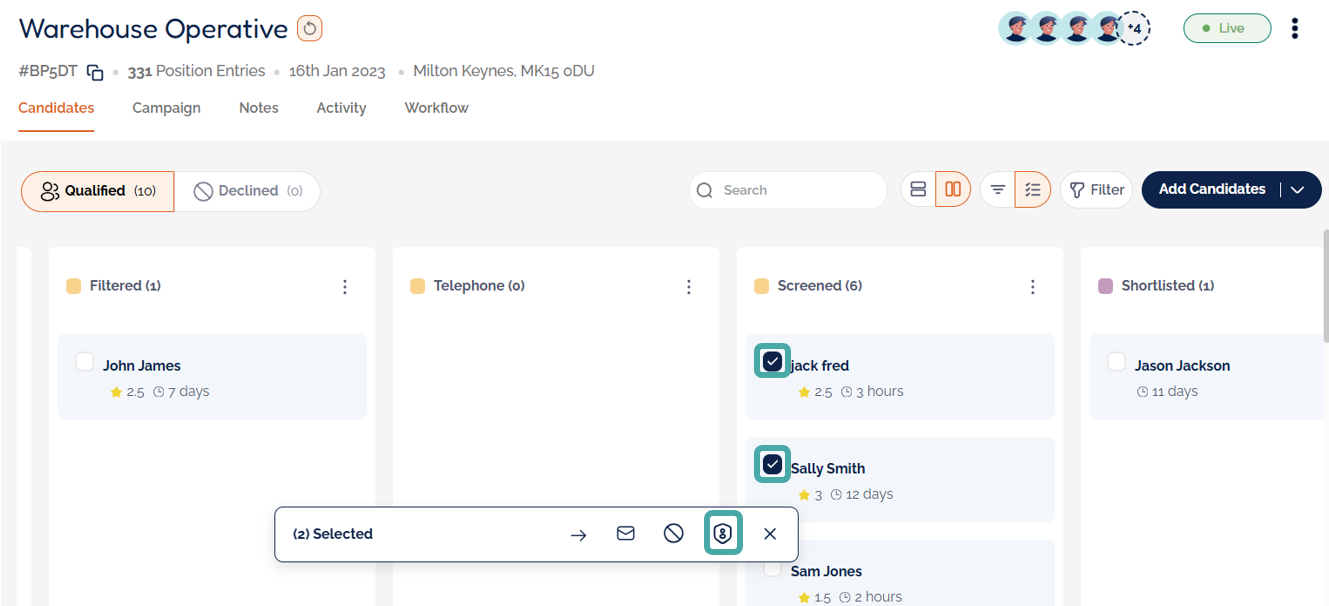
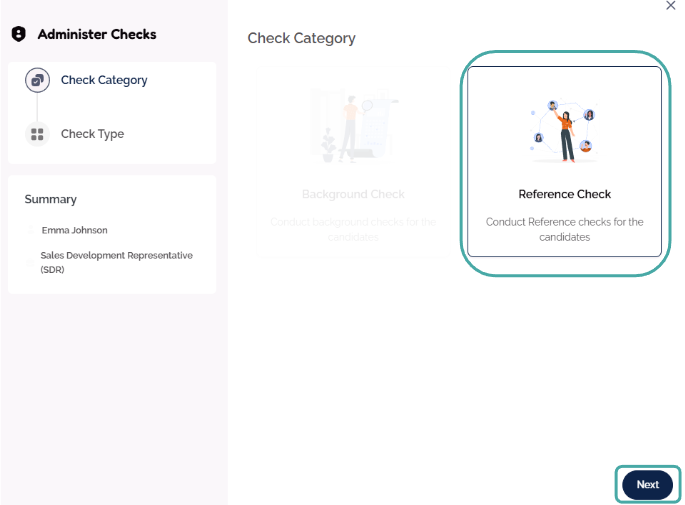
A window will open. Select Reference check and click Next.
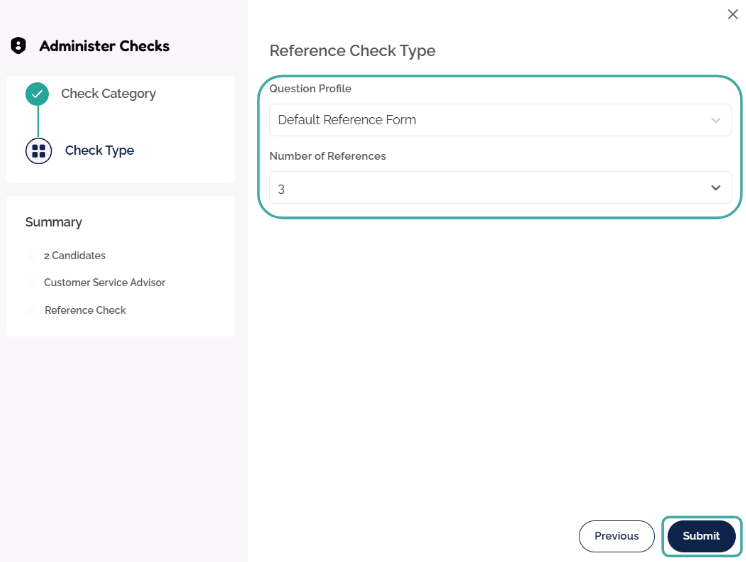
Select the reference form that you wish to use and the number of references required from the dropdown menus.
Once done, click Submit.
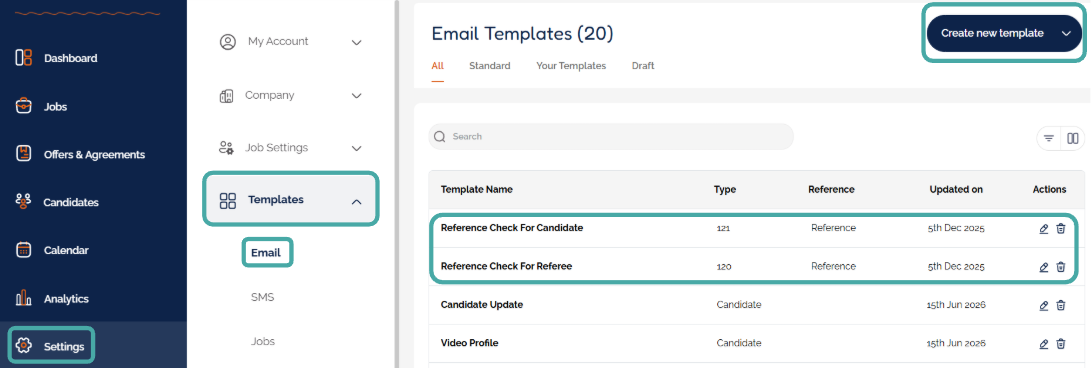
In the Templates section of Settings, you will find email templates already created for both candidates and referees that contain the reference form link.
If you would like to view or alter these templates, simply navigate to Settings>Templates>Email. From here, you can view and edit the email templates to suit your needs.
Note: When editing email templates, ensure the [REF_CHECK_CANDIDATE_URL] and [REF_CHECK_REFEREE_URL] shortcodes remain within the message body text, as these provide the link to complete the reference checks.

The Candidate and Referee View
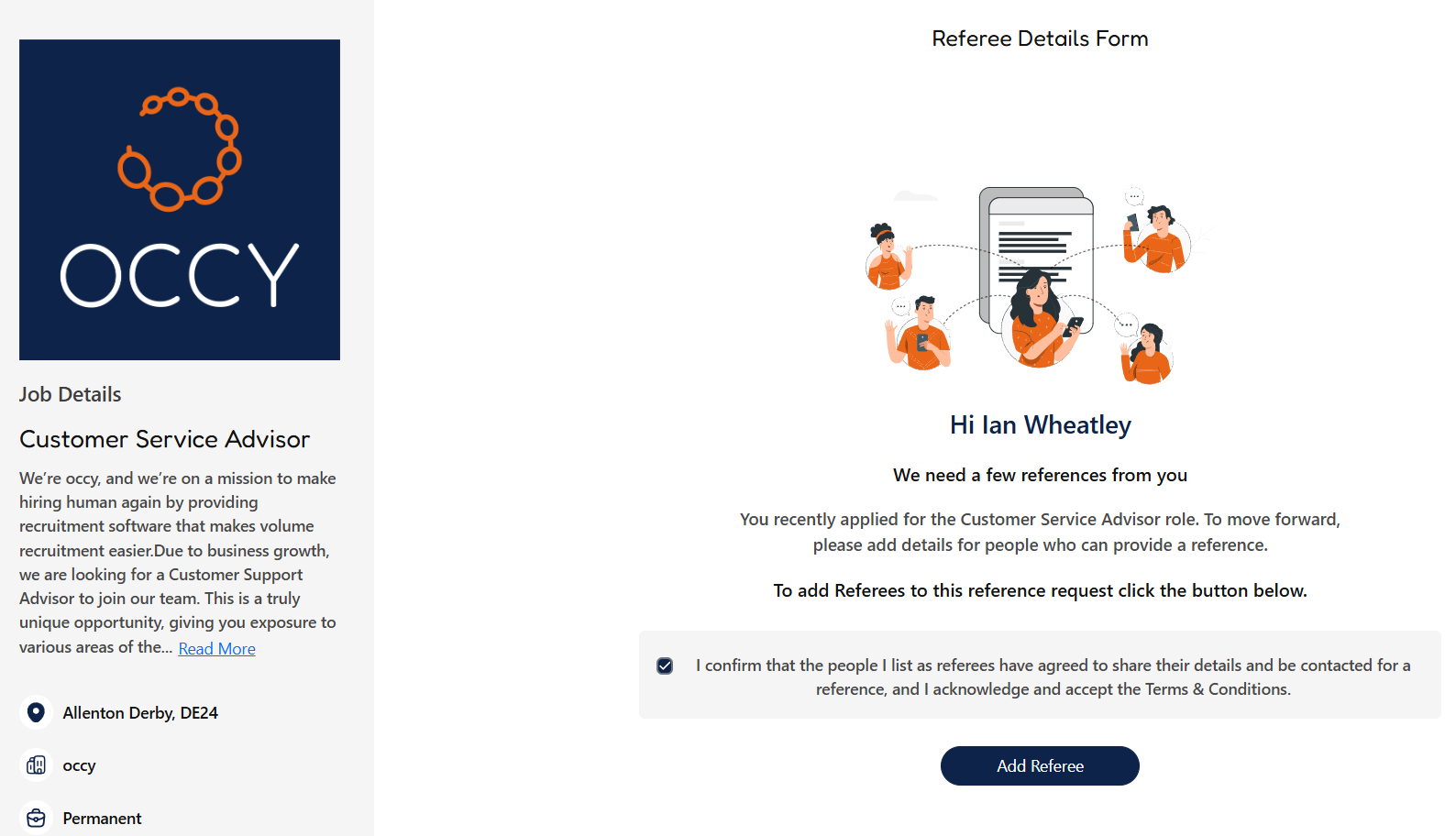
Once the reference request has been sent, the candidate can click the link in the email to provide their referee's details.
Then, the reference form will be sent to the referees, who can simply click the link in the email to complete the form.

Track and Manage References
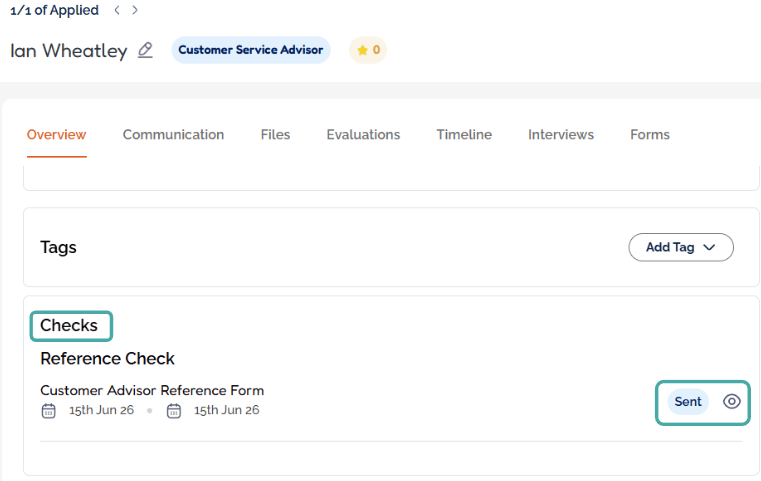
Track the progress of references in the candidate profile by clicking on a candidate with a job and scrolling to the Checks section.
A Sent status will appear once the candidate has completed the referee details.
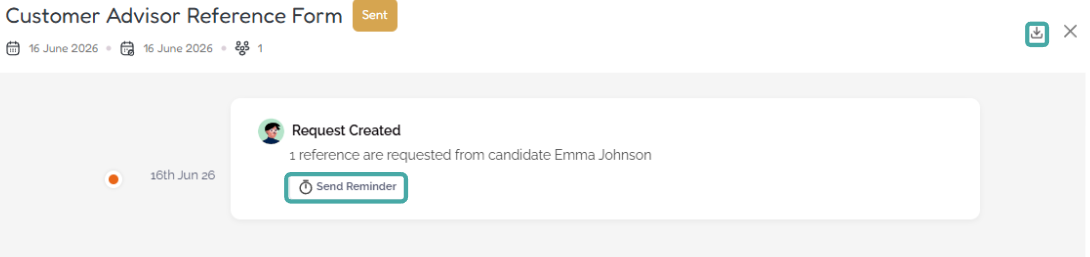
Click the eye icon next to the reference request to see an activity timeline and track the progress of each request.
To follow up with a candidate or referee, simply click the Send Reminder button in the activity timeline, and a window will appear to send a reminder email.
Reminder emails can be triggered automatically if you're using a workflow automation to automatically send reference requests; more details of this can be found in the Workflow Automations article.
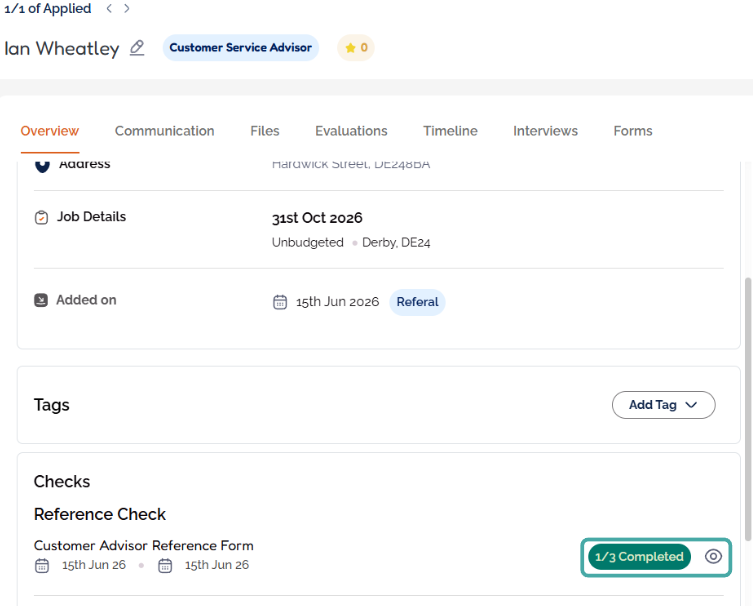
The Checks section will update as soon as a reference has been completed.
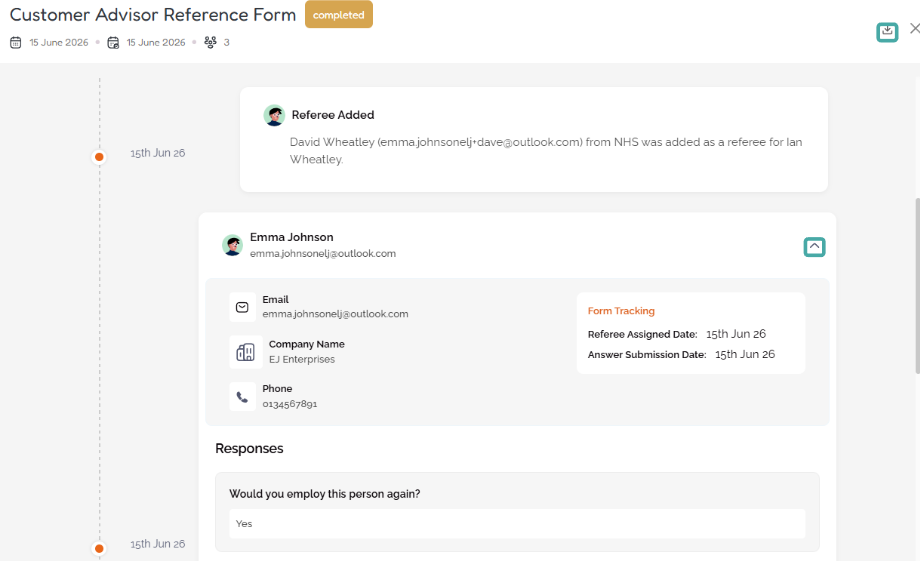
Completed checks can be viewed using the dropdown arrow next to the check within the timeline, and all information can be downloaded using the icon at the top of the window.
Was this article helpful?
That’s Great!
Thank you for your feedback
Sorry! We couldn't be helpful
Thank you for your feedback
Feedback sent
We appreciate your effort and will try to fix the article