What Is AI Candidate Scoring?
When a candidate applies to one of your jobs, Occy reads their CV and profile against the role and gives the application a fit score from 0 to 100. You get a quick, consistent first read on every applicant, so you can spend your time on the people who look like a great match.
- Overall score from 0 to 100
- Match label: Weak, Fair, Good or Strong Match
- Dimension scores for Technical Skills, Experience and Cultural Fit
- Summary, strengths and concerns, plus a recommendation and suggested interview questions
| Score | Match label |
|---|---|
| 80 and above | Strong Match |
| 60 to 79 | Good Match |
| 40 to 59 | Fair Match |
| Below 40 | Weak Match |
Note: The AI score is an advisory signal. It supports your hiring decisions and never replaces human screening or your team's evaluations.
Who Can Use It
| Permission | What it allows |
|---|---|
| Manage Applications | View and refresh an application's AI score |
| Manage Company Profile | Edit or reset your company's AI score weights |
Every company user can view the current weights. If something is missing for you, ask your account admin to check your role.
Using AI Candidate Scoring
Step 1 - Check the Score on Your Pipeline
Scoring starts automatically in the background when a candidate applies. The application still goes through even if scoring fails.
- Go to Jobs and open the job's Kanban pipeline board.
- Each application card shows a score tag with the candidate's percentage.
- The same score tag appears in the header when you open the application.
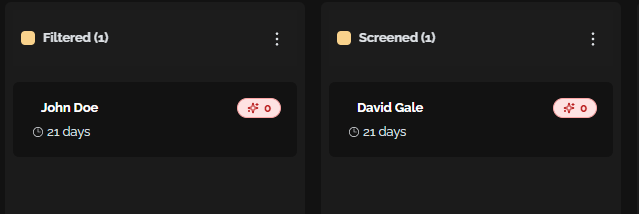
Note: A score of 0 on the card means the application hasn't been scored yet. See Step 3 to generate one.
Step 2 - View the Full Breakdown
- Open the candidate's application.
- Click the Evaluations tab, then select AI Analyze.
- The AI Candidate Scoring panel shows the score and match label, a short summary, a score for each dimension, strengths and concerns, a recommendation and suggested interview questions.
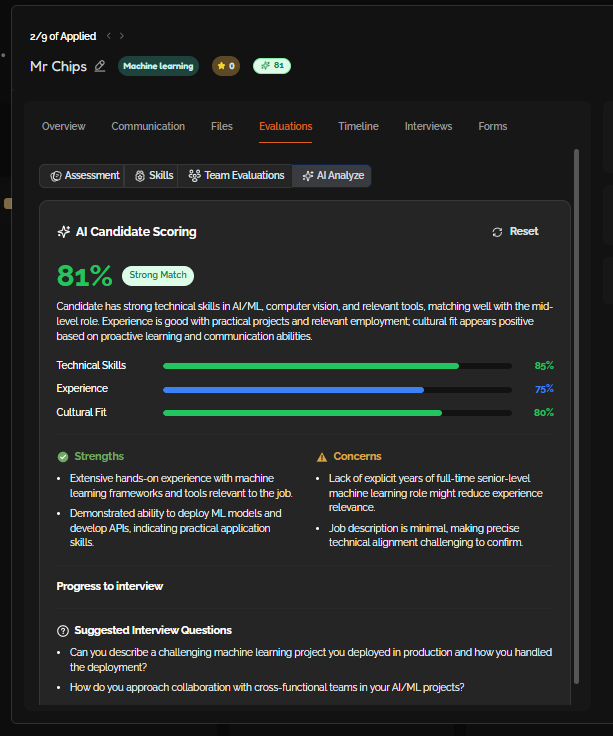
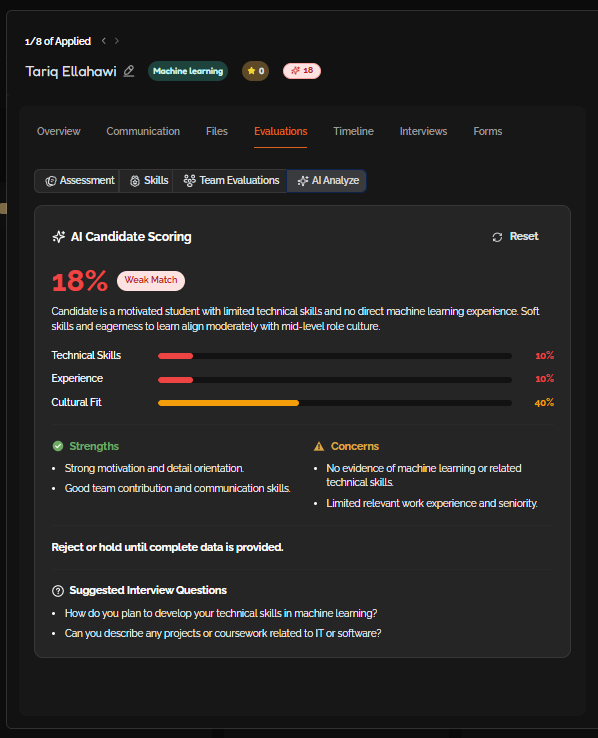
A Strong Match (left) and a Weak Match (right) for the same role.
Tip: Use the Suggested Interview Questions to dig into any concerns the AI has flagged when you invite the candidate to interview.
Step 3 - Generate or Refresh a Score
Run the analysis again if a score is missing, or after you've updated the candidate's CV or the job description.
- Open the application and go to Evaluations > AI Analyze.
- Click Analyze Fit to generate a score, or Reset to refresh an existing one.
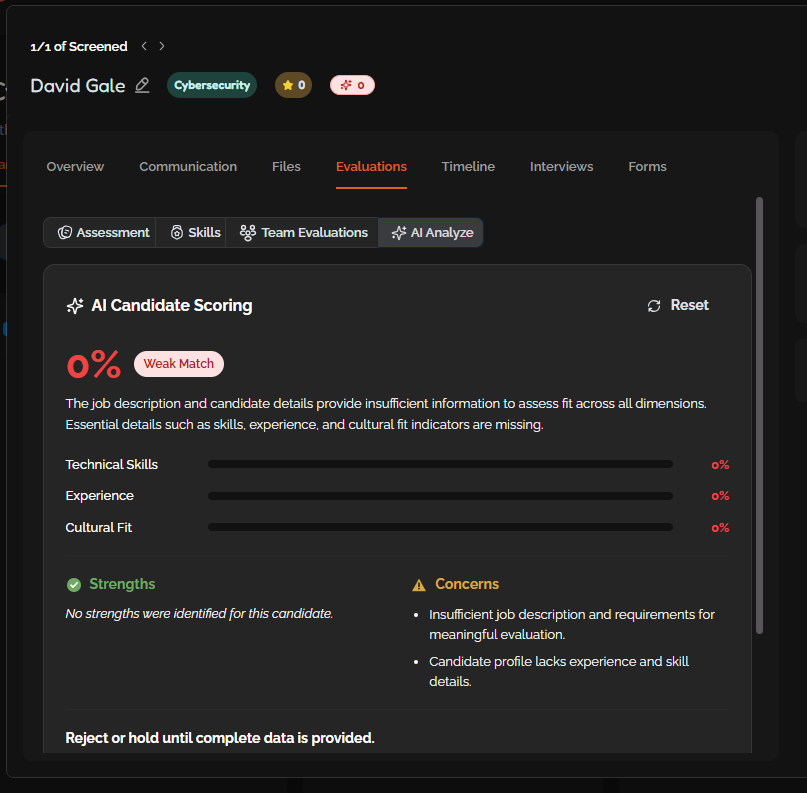
Note: Allow about 30 seconds between refreshes on the same application. If you see “Please wait N seconds…”, give it a moment and try again.
Step 4 - Adjust Your AI Score Weights (Optional)
Choose how much each dimension counts towards the overall score.
The defaults are Technical 40%, Experience 35% and Cultural 25%. Occy normalises your values so they always add up to 100%.
- Open Settings > Job Settings > AI Score Weights. You can also open AI weights from the toolbar on the Candidates listing.
- Drag the sliders for Technical fit, Experience relevance and Cultural match.
- Click Save weights, or Reset to go back to the defaults.
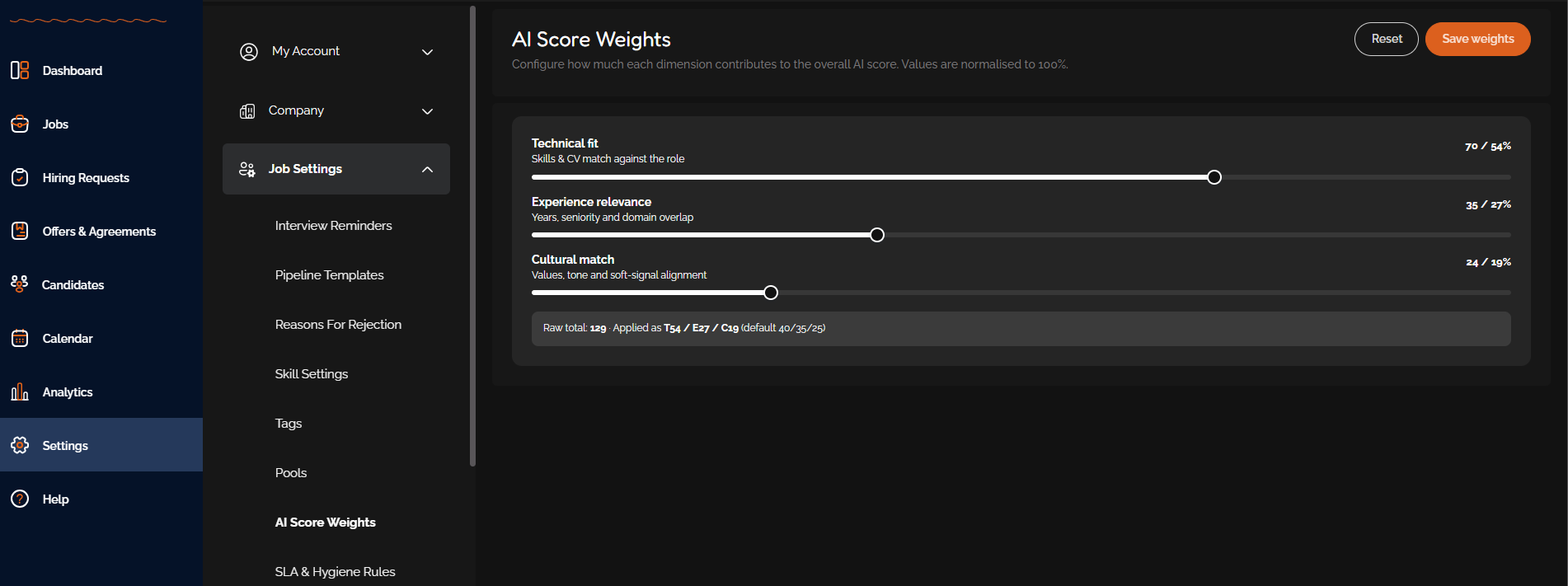
Note: New weights apply to new or refreshed scores only. Existing scores aren't recalculated, so use Reset on an application to rescore it.
Before You Start
- Scores are per application. A score shows fit for that specific job, not a ranking across your whole talent pool.
- A CV improves accuracy. Scoring still runs on thinner profiles, but more detail in the CV and job description gives a better analysis.
- Internal only. AI Analyze is for company users. Candidates never see their score.
- Not on the Candidates listing. AI scores aren't a filter or column on the Candidates or pool listing. Use the job's Kanban board instead.
Common Questions
| Issue | What to check |
|---|---|
| Score shows as 0 | Open AI Analyze and click Analyze Fit or Reset. Make sure the application is linked to a job. |
| Can't see the AI Analyze tab or refresh a score | You need the Manage Applications permission. The tab isn't shown in the candidate view. |
| Can't change AI weights | You need the Manage Company Profile permission. |
| “Please wait N seconds…” | This is the refresh cooldown. Wait a moment and try again. |
| Analysis looks thin or weak | The CV, profile or job description may lack detail. Add more information, then click Reset. |
You May Like to Read
Was this article helpful?
That’s Great!
Thank you for your feedback
Sorry! We couldn't be helpful
Thank you for your feedback
Feedback sent
We appreciate your effort and will try to fix the article