Sources are added automatically when a candidate applies for a role, and you can create your own to add to candidates that you manually upload.

Candidate and Application Sources - What is the Difference?
A candidate source is selected when manually uploading a candidate to the system to keep track of where the candidate originated from, e.g. a referral, LinkedIn, etc.
You can create a list of candidate sources in the Candidate Sources section of the Settings area – we’ll show you how in the next section.
Application sources are attached to a candidate automatically when they apply for a role and display from which channel the candidate applied, for example, the careers page, Premium channel, etc.
Sources appear in the candidate profile once the candidate has been assigned to a job, to allow your team to keep track of which candidate and application sources are working for you.
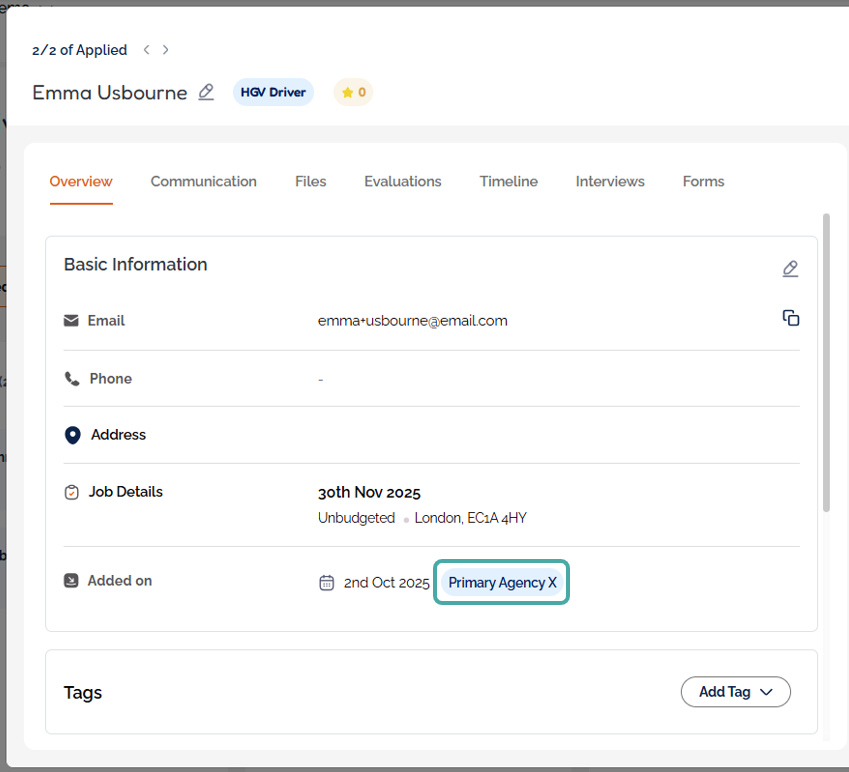

Adding Candidate Sources
Create a list of candidate sources to choose from when manually uploading your candidates.
- Open Settings from the main menu and select Company, followed by Candidate Sources.
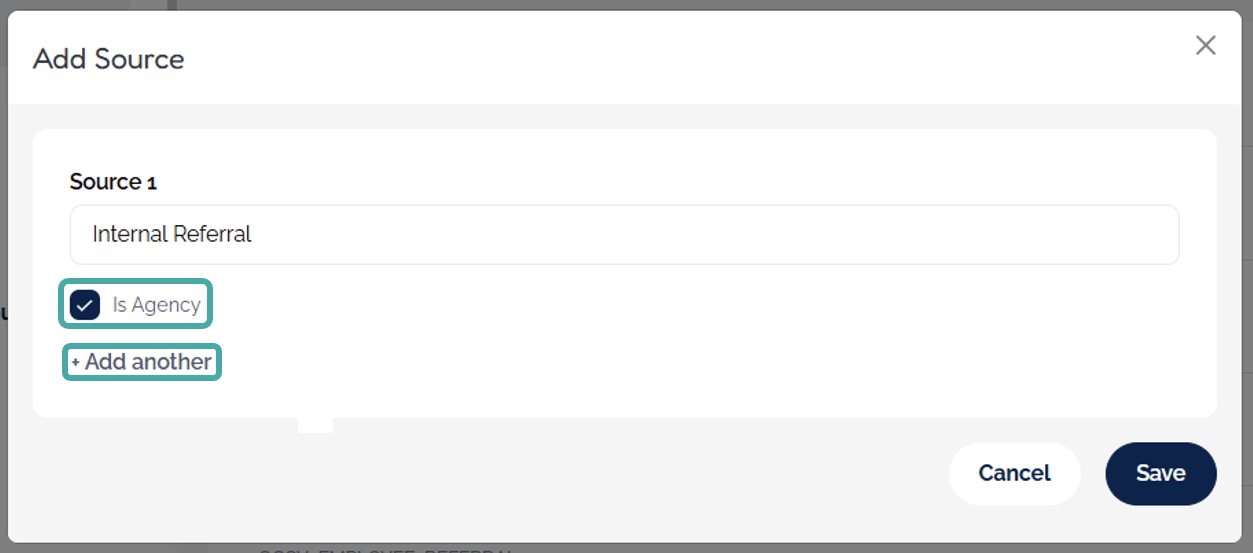
- Click +Add Source to begin creating your list.

- Multiple candidate sources can be added simultaneously using the +Add another button.
- If the source is an agency, click the Is Agency tick box.
- Once you're happy with your list, click Save.
- Edit and delete candidate sources using the pencil and bin icons.
- The code underneath the agency candidate sources should be sent to the agency to enable them to submit candidates. Click the link to see the full process.


Using Candidate Sources

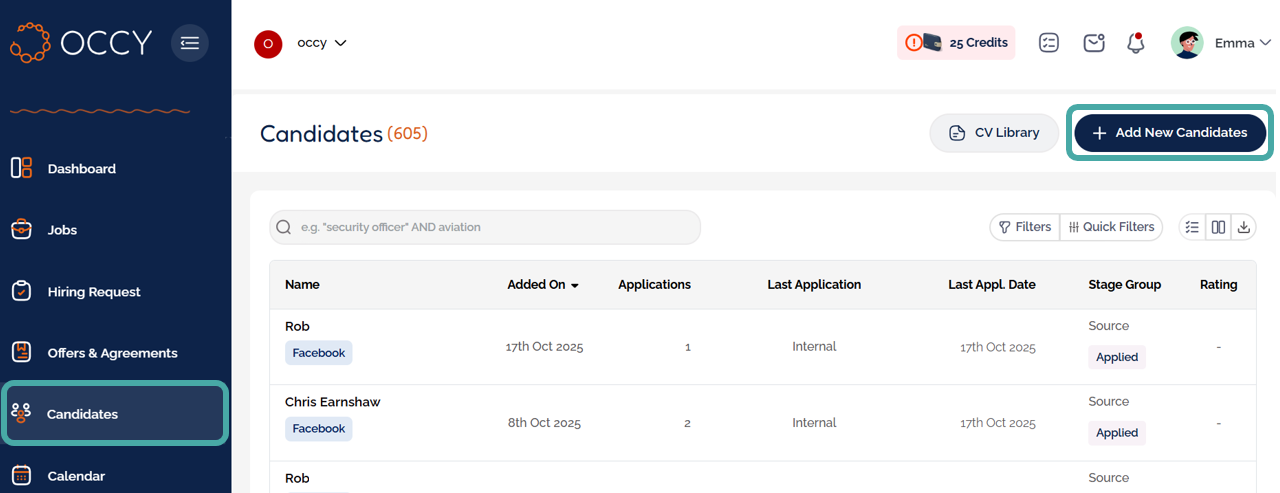
- Candidates can be added directly to the candidate pool and not assigned to a job by clicking the Add Candidates button at the top of the Candidates section.
Note: The candidate source will not appear until the candidate is assigned to a job.
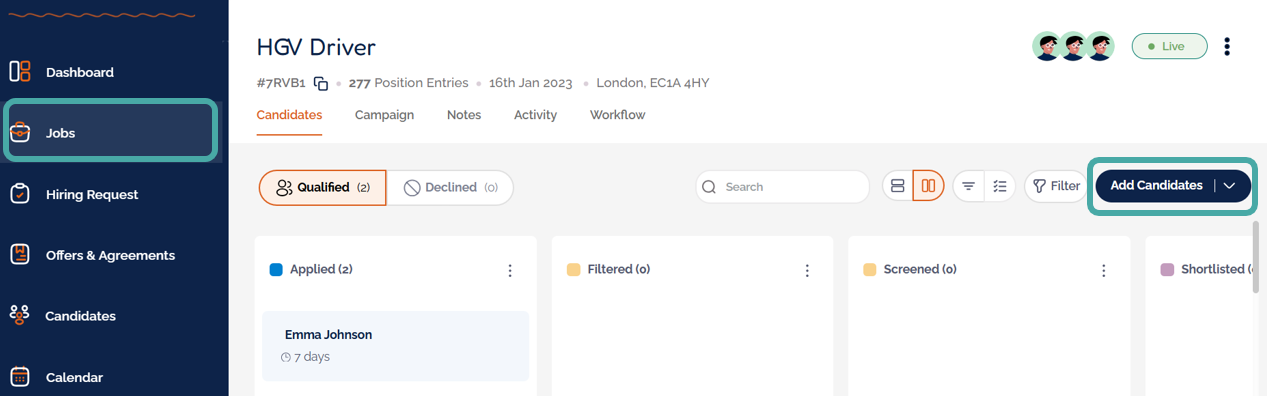
- Alternatively, you can upload a candidate directly into a job by clicking the Add Candidates button in the Candidates tab of the job.
- When adding the candidate information, select the source from the Source dropdown menu.

Was this article helpful?
That’s Great!
Thank you for your feedback
Sorry! We couldn't be helpful
Thank you for your feedback
Feedback sent
We appreciate your effort and will try to fix the article