What's New
The Candidates page has a fresh look that makes it quicker to find, organise and act on your talent. You can now group people into named, colour-coded Talent Pools, ready for your next role.
- A redesigned Candidates listing, in the same menu
- A sidebar with Saved Filters, Pools and Tags
- Named, colour-coded talent pools
- List and Split views, a column picker and density options
- CSV export and blind screening
- Pool metrics: Members, 30D Growth, Avg Rating and Source Mix
- Bulk Email, Tag, Add to pool and Remove from current pool
- Pool activity at a glance
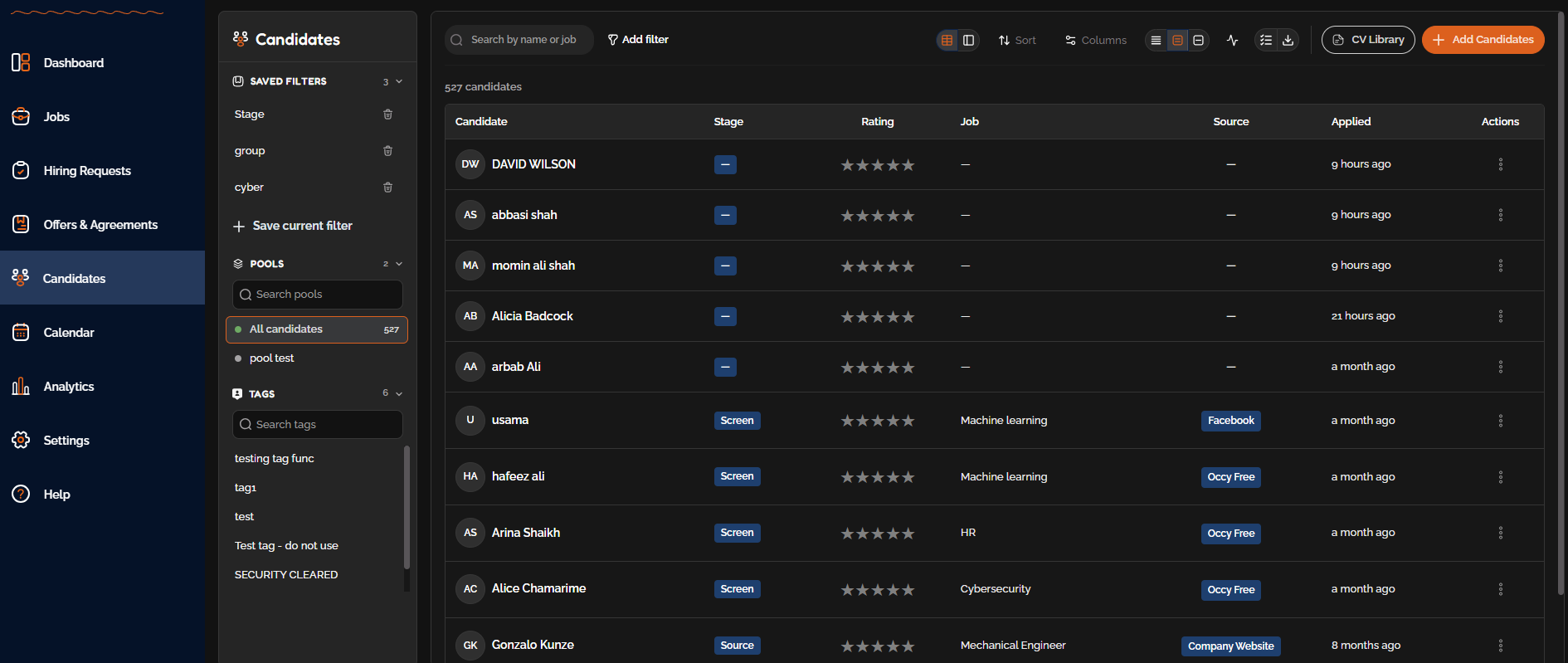
Key idea: Adding someone to a pool doesn't move them. A pool works like a label, so the candidate still appears under All candidates, and they can belong to more than one pool.
Who Can Use It
| Permission | What it allows |
|---|---|
| View All Candidates | View and search the Candidates listing |
| Manage Talent Pools | Create, edit and delete pools (usually Admins and Recruiters) |
| Manage Candidates | Add candidates to pools or remove them |
If you can't see or do something, ask your account admin to check your role.
Using the Candidates Listing and Talent Pools
Step 1 - Create a Talent Pool
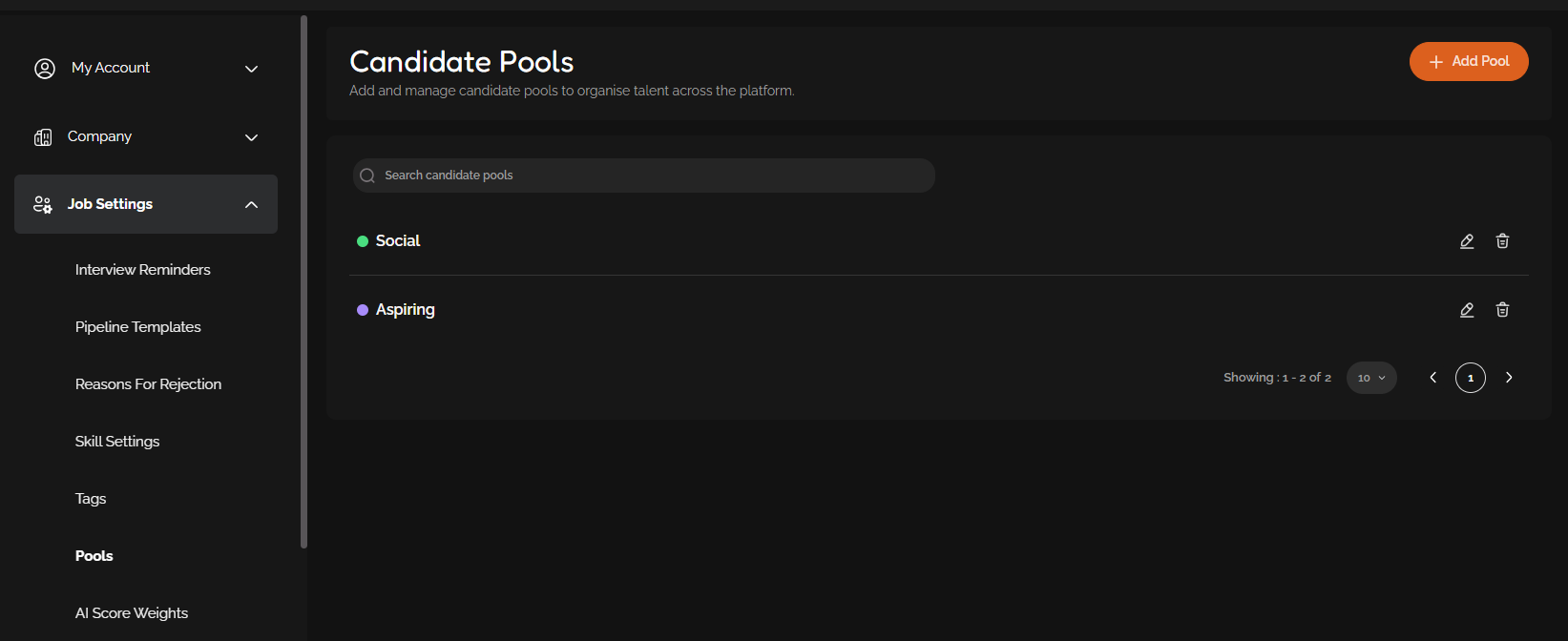
Set your pools up once, then add to them whenever you need. You can create a pool from Candidates or from Settings.
- Open Settings from the left menu, then go to Job Settings > Pools.
- Click Add Pool.
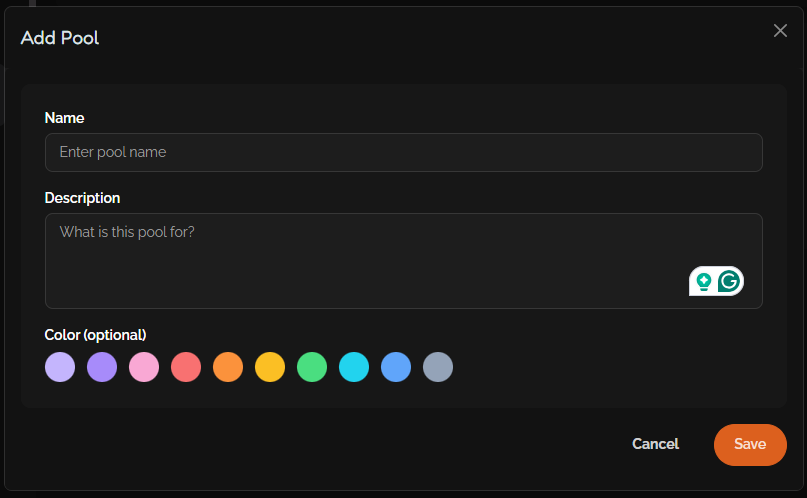
- Enter a Name. This is the only required field.
- Add a Description so your team knows what the pool is for (optional).
- Pick a Color to make the pool easy to spot in the sidebar (optional).
- Click Save.
To edit or delete a pool, use the pencil or bin icon next to it on the Candidate Pools page.
Note: You can't delete a pool that still has members. Remove the candidates from the pool first, then delete it.
Step 2 - Add Candidates to a Pool
- Open Candidates from the left menu.
- Tick the checkbox next to each candidate you want to add. You can select up to 10 at a time.
- Click Add to pool and choose the pool.
Tip: To take candidates out, open the pool, select them and click Remove from current pool. They'll still appear under All candidates.
Step 3 - Find and Filter Candidates
- Start from All candidates, or click a pool, tag or saved filter in the sidebar to narrow the list.
- Use the search bar to find candidates by name or job.
- Click Add filter to refine the list. Save a filter you use often with Save current filter.
- Use Sort to order by Most recent, Name A→Z or Highest rated.
- Use Columns to choose what you see, and the density options to fit more or fewer rows on screen.
Step 4 - Work With Your Candidates
- Click a candidate's name to open their full profile.
- Switch to Split view to see the list and a candidate's details side by side.
- Select up to 10 candidates to Email or Tag them in one go.
- Use the export button to download the list as a CSV.
- Turn on blind screening to hide identifying details while you review.
Before You Start
- Pools organise, they don't move. Candidates in a pool always stay in All candidates.
- Bulk actions are capped at 10. Select up to 10 candidates at a time for any bulk action.
- Pools must be empty to delete. Remove every member before deleting a pool.
- CV Library is separate. Find it with the CV Library button at the top of the Candidates listing.
Empty states: You may see “No candidate pools yet”, “No candidates in this pool” or “No matches found”. These just mean there's nothing to show for your current view or filters.
Common Questions
| Issue | What to check |
|---|---|
| Can't see the Candidates listing | You need the View All Candidates permission. |
| Can't create or edit pools | You need the Manage Talent Pools permission. Pool settings are usually managed by Admins. |
| Can't add or remove candidates from a pool | You need the Manage Candidates permission. |
| Can't delete a pool | The pool still has members. Remove them first, then delete it. |
| A pool shows no results unexpectedly | Check the candidates were added to that pool and clear any extra filters. If it still looks wrong, contact support. |
You May Like to Read
Was this article helpful?
That’s Great!
Thank you for your feedback
Sorry! We couldn't be helpful
Thank you for your feedback
Feedback sent
We appreciate your effort and will try to fix the article